
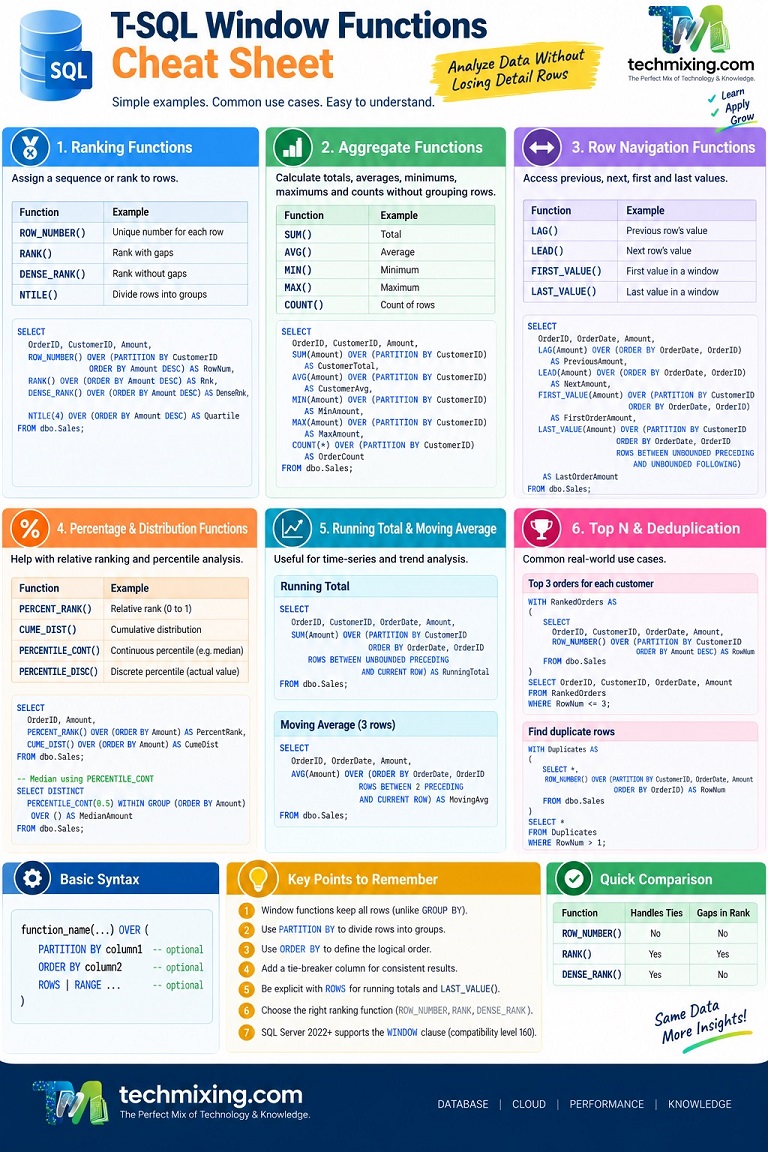
Window functions are one of the most useful features in T-SQL.
They allow you to calculate things such as:
- Row numbers
- Rankings
- Running totals
- Moving averages
- Previous and next values
- Percentage calculations
- Top N records within each group
- First and last values
- Comparisons between rows
The best part is that window functions calculate values across related rows without collapsing those rows into a single result.
This makes them very useful for reporting, analytics, data analysis, and SQL performance troubleshooting.
This article provides a simple T-SQL Window Functions Cheat Sheet with practical examples that you can use in your SQL Server queries.
What Is a Window Function?
A window function performs a calculation across a set of rows related to the current row.

For example, suppose we have this data:
| OrderID | CustomerID | OrderDate | Amount |
|---|---|---|---|
| 101 | 1 | 2026-01-01 | 100 |
| 102 | 1 | 2026-01-05 | 200 |
| 103 | 1 | 2026-01-10 | 150 |
| 104 | 2 | 2026-01-02 | 300 |
| 105 | 2 | 2026-01-08 | 250 |
A normal GROUP BY could calculate total sales for each customer.
But a window function can calculate the customer total while still returning every order.
SELECT
    OrderID,
    CustomerID,
    OrderDate,
    Amount,
    SUM(Amount) OVER
    (
        PARTITION BY CustomerID
    ) AS CustomerTotal
FROM dbo.Sales;
The result can look like:
| OrderID | CustomerID | Amount | CustomerTotal |
|---|---|---|---|
| 101 | 1 | 100 | 450 |
| 102 | 1 | 200 | 450 |
| 103 | 1 | 150 | 450 |
| 104 | 2 | 300 | 550 |
| 105 | 2 | 250 | 550 |
The individual rows are preserved.
That is the main idea behind window functions.
Microsoft describes the OVER clause as defining the partitioning and ordering of rows before the window function is applied.
The Basic Syntax
The basic pattern is:
function_name(...)
OVER
(
    PARTITION BY column1
    ORDER BY column2
)
For example:
SUM(Amount) OVER
(
    PARTITION BY CustomerID
)
There are three important parts to understand.
1. Function
Examples:
SUM()
AVG()
ROW_NUMBER()
RANK()
LAG()
LEAD()
2. PARTITION BY
PARTITION BY divides the rows into groups.
PARTITION BY CustomerIDThe calculation starts separately for each customer.
3. ORDER BY
ORDER BY defines the logical order of rows within the window.
ORDER BY OrderDateIt is particularly important for ranking, running totals, LAG, LEAD, and other order-sensitive calculations.
T-SQL Window Functions Cheat Sheet
Here is a quick reference.
| Function | Main purpose | Typical use |
|---|---|---|
ROW_NUMBER() | Gives every row a unique sequence number | Top N, deduplication |
RANK() | Gives the same rank to ties, with gaps | Competition ranking |
DENSE_RANK() | Gives the same rank to ties, without gaps | Dense ranking |
NTILE() | Divides rows into groups | Quartiles, buckets |
SUM() OVER() | Calculates totals without grouping rows | Running totals |
AVG() OVER() | Calculates averages across rows | Moving averages |
MIN() OVER() | Finds minimum value in a window | Group minimum |
MAX() OVER() | Finds maximum value in a window | Group maximum |
COUNT() OVER() | Counts rows in a window | Group counts |
LAG() | Gets a previous row’s value | Previous order |
LEAD() | Gets a next row’s value | Next order |
FIRST_VALUE() | Gets the first value | First order |
LAST_VALUE() | Gets the last value | Last order |
PERCENT_RANK() | Calculates relative rank | Percentage ranking |
CUME_DIST() | Calculates cumulative distribution | Distribution analysis |
PERCENTILE_CONT() | Calculates continuous percentile | Median and percentiles |
PERCENTILE_DISC() | Calculates discrete percentile | Percentile based on actual values |
SQL Server provides ranking functions such as ROW_NUMBER, RANK, DENSE_RANK, and NTILE, along with analytic functions such as LAG, LEAD, FIRST_VALUE, and LAST_VALUE.
1. ROW_NUMBER()
ROW_NUMBER() assigns a sequential number to each row.
SELECT
    OrderID,
    CustomerID,
    Amount,
    ROW_NUMBER() OVER
    (
        ORDER BY Amount DESC
    ) AS RowNumber
FROM dbo.Sales;
Example:
| OrderID | Amount | RowNumber |
|---|---|---|
| 104 | 300 | 1 |
| 102 | 200 | 2 |
| 105 | 250 | 3 |
The exact order depends on the ORDER BY.
ROW_NUMBER() with PARTITION BY
This is especially useful when you want numbering to restart for each customer.
SELECT
    OrderID,
    CustomerID,
    Amount,
    ROW_NUMBER() OVER
    (
        PARTITION BY CustomerID
        ORDER BY Amount DESC
    ) AS CustomerRowNumber
FROM dbo.Sales;
The numbering starts at 1 for every customer.
ROW_NUMBER() returns a bigint. SQL Server also notes that the ordering can be nondeterministic when the columns used to order the rows are not unique.
A good practice is to add a tie-breaker:
ROW_NUMBER() OVER
(
    PARTITION BY CustomerID
    ORDER BY Amount DESC, OrderID
)
2. RANK()
RANK() gives the same rank to rows with the same ordering value.
SELECT
    OrderID,
    Amount,
    RANK() OVER
    (
        ORDER BY Amount DESC
    ) AS SalesRank
FROM dbo.Sales;
Suppose the amounts are:
500
500
300
200
The ranks will be:
1
1
3
4
Notice that rank 2 is skipped.
Microsoft describes this behavior as ranking with gaps when ties occur.
3. DENSE_RANK()
DENSE_RANK() is similar to RANK() but does not leave gaps.
For:
500
500
300
200
the result is:
1
1
2
3
Example:
SELECT
    OrderID,
    Amount,
    DENSE_RANK() OVER
    (
        ORDER BY Amount DESC
    ) AS DenseRank
FROM dbo.Sales;
RANK vs DENSE_RANK
| Amount | RANK | DENSE_RANK |
|---|---|---|
| 500 | 1 | 1 |
| 500 | 1 | 1 |
| 300 | 3 | 2 |
| 200 | 4 | 3 |
A simple way to remember it:
RANK can have gaps.
DENSE_RANK does not have gaps.
4. NTILE()
NTILE() divides rows into a specified number of groups.
For example:
SELECT
    OrderID,
    Amount,
    NTILE(4) OVER
    (
        ORDER BY Amount DESC
    ) AS Quartile
FROM dbo.Sales;
NTILE(4) attempts to divide the result into four groups.
This can be useful for:
- Quartiles
- Customer segmentation
- Performance groups
- Top 10%, 25%, 50%, etc.
5. SUM() OVER()
One of the most common uses of window functions is calculating totals without using GROUP BY.
SELECT
    OrderID,
    CustomerID,
    Amount,
    SUM(Amount) OVER
    (
        PARTITION BY CustomerID
    ) AS CustomerTotal
FROM dbo.Sales;
This gives every order the total amount for its customer.
6. Running Total
A running total is another very common requirement.
SELECT
    OrderID,
    CustomerID,
    OrderDate,
    Amount,
    SUM(Amount) OVER
    (
        PARTITION BY CustomerID
        ORDER BY OrderDate, OrderID
        ROWS BETWEEN UNBOUNDED PRECEDING AND CURRENT ROW
    ) AS RunningTotal
FROM dbo.Sales;
For example:
| OrderDate | Amount | RunningTotal |
|---|---|---|
| Jan 1 | 100 | 100 |
| Jan 5 | 200 | 300 |
| Jan 10 | 150 | 450 |
The ROWS clause explicitly defines which rows belong to the calculation.
For running totals, explicitly specifying the window frame is often easier to understand and safer when there can be duplicate ordering values.
7. AVG() OVER()
You can calculate an average without grouping the rows.
SELECT
    OrderID,
    CustomerID,
    Amount,
    AVG(Amount) OVER
    (
        PARTITION BY CustomerID
    ) AS AverageCustomerOrder
FROM dbo.Sales;
This is useful when you want to compare each row against the average.
For example:
SELECT
    OrderID,
    CustomerID,
    Amount,
    AVG(Amount) OVER
    (
        PARTITION BY CustomerID
    ) AS AverageAmount,
    Amount -
    AVG(Amount) OVER
    (
        PARTITION BY CustomerID
    ) AS DifferenceFromAverage
FROM dbo.Sales;
8. Moving Average
Window functions can also calculate a moving average.
For example, a three-row moving average:
SELECT
    OrderID,
    OrderDate,
    Amount,
    AVG(Amount) OVER
    (
        ORDER BY OrderDate, OrderID
        ROWS BETWEEN 2 PRECEDING AND CURRENT ROW
    ) AS MovingAverage
FROM dbo.Sales;
The window contains:
Current row
Previous row
Two rows before the current row
This is useful for time-series analysis and reporting.
9. MIN() and MAX()
You can find the minimum and maximum values within a group without grouping the result.
SELECT
    OrderID,
    CustomerID,
    Amount,
    MIN(Amount) OVER
    (
        PARTITION BY CustomerID
    ) AS MinimumOrder,
    MAX(Amount) OVER
    (
        PARTITION BY CustomerID
    ) AS MaximumOrder
FROM dbo.Sales;
This allows every order to be compared with the customer’s smallest and largest order.
10. COUNT() OVER()
You can count rows within each partition.
SELECT
    OrderID,
    CustomerID,
    Amount,
    COUNT(*) OVER
    (
        PARTITION BY CustomerID
    ) AS CustomerOrderCount
FROM dbo.Sales;
This is useful when you want the number of orders while still displaying individual orders.
11. LAG()
LAG() returns a value from a previous row.
For example:
SELECT
    OrderID,
    OrderDate,
    Amount,
    LAG(Amount) OVER
    (
        ORDER BY OrderDate, OrderID
    ) AS PreviousAmount
FROM dbo.Sales;
You can then calculate the difference:
SELECT
    OrderID,
    OrderDate,
    Amount,
    LAG(Amount) OVER
    (
        ORDER BY OrderDate, OrderID
    ) AS PreviousAmount,
    Amount -
    LAG(Amount) OVER
    (
        ORDER BY OrderDate, OrderID
    ) AS Difference
FROM dbo.Sales;
This is extremely useful for:
- Comparing current and previous transactions
- Month-over-month analysis
- Price changes
- Sales changes
- Detecting changes in status
12. LEAD()
LEAD() does the opposite of LAG().
It looks at a future row.
SELECT
    OrderID,
    OrderDate,
    Amount,
    LEAD(Amount) OVER
    (
        ORDER BY OrderDate, OrderID
    ) AS NextAmount
FROM dbo.Sales;
A simple way to remember:
LAG  = previous row

LEAD = next row
13. FIRST_VALUE()
FIRST_VALUE() returns the first value according to the window ordering.
SELECT
    OrderID,
    CustomerID,
    OrderDate,
    Amount,
    FIRST_VALUE(Amount) OVER
    (
        PARTITION BY CustomerID
        ORDER BY OrderDate, OrderID
    ) AS FirstOrderAmount
FROM dbo.Sales;
This can be useful when comparing the current row with the customer’s first transaction.
Microsoft documents FIRST_VALUE() as returning the first value in an ordered set.
14. LAST_VALUE()
LAST_VALUE() can be slightly confusing.
Consider:
SELECT
    OrderID,
    CustomerID,
    OrderDate,
    Amount,
    LAST_VALUE(Amount) OVER
    (
        PARTITION BY CustomerID
        ORDER BY OrderDate, OrderID
    ) AS LastOrderAmount
FROM dbo.Sales;
You might expect this to return the last order for the customer.
But the default window frame can cause LAST_VALUE() to return the value from the current row.
For the actual last value in the entire partition, explicitly define the frame:
SELECT
    OrderID,
    CustomerID,
    OrderDate,
    Amount,
    LAST_VALUE(Amount) OVER
    (
        PARTITION BY CustomerID
        ORDER BY OrderDate, OrderID
        ROWS BETWEEN UNBOUNDED PRECEDING
                 AND UNBOUNDED FOLLOWING
    ) AS LastOrderAmount
FROM dbo.Sales;
This is one of the most important LAST_VALUE() concepts to remember.
15. PERCENT_RANK()
PERCENT_RANK() calculates the relative rank of a row.
SELECT
    OrderID,
    Amount,
    PERCENT_RANK() OVER
    (
        ORDER BY Amount
    ) AS PercentRank
FROM dbo.Sales;
This can be useful when analyzing where a value falls relative to other values.
16. CUME_DIST()
CUME_DIST() calculates the cumulative distribution of a value.
SELECT
    OrderID,
    Amount,
    CUME_DIST() OVER
    (
        ORDER BY Amount
    ) AS CumulativeDistribution
FROM dbo.Sales;
It can be useful for distribution analysis and percentile-style reporting.
17. PERCENTILE_CONT()
PERCENTILE_CONT() calculates a continuous percentile.
For example, to calculate the median:
SELECT DISTINCT
    PERCENTILE_CONT(0.5)
    WITHIN GROUP
    (
        ORDER BY Amount
    ) OVER () AS MedianAmount
FROM dbo.Sales;
Here:
0.50 = 50th percentileOther examples:
0.25 = 25th percentile
0.50 = 50th percentile
0.75 = 75th percentile
0.90 = 90th percentile
18. PERCENTILE_DISC()
PERCENTILE_DISC() is similar to PERCENTILE_CONT(), but it returns a value from the actual data set rather than interpolating between values.
SELECT DISTINCT
    PERCENTILE_DISC(0.5)
    WITHIN GROUP
    (
        ORDER BY Amount
    ) OVER () AS MedianAmount
FROM dbo.Sales;
The distinction is:
PERCENTILE_CONT
    Can interpolate a value

PERCENTILE_DISC
    Returns an actual value from the data
ROW_NUMBER vs RANK vs DENSE_RANK
This is one of the most common interview questions.
Suppose we have:
| Employee | Salary |
|---|---|
| A | 100000 |
| B | 100000 |
| C | 90000 |
| D | 80000 |
The results are:
| Employee | Salary | ROW_NUMBER | RANK | DENSE_RANK |
|---|---|---|---|---|
| A | 100000 | 1 | 1 | 1 |
| B | 100000 | 2 | 1 | 1 |
| C | 90000 | 3 | 3 | 2 |
| D | 80000 | 4 | 4 | 3 |
Remember
ROW_NUMBER
Every row gets a different number.
RANK
Ties get the same rank, and gaps are created.
DENSE_RANK
Ties get the same rank, but no gaps are created.
Top 3 Records for Each Group
This is one of the most practical uses of ROW_NUMBER().
Suppose you need the top three orders for every customer.
First calculate the row number:
WITH RankedOrders AS
(
    SELECT
        OrderID,
        CustomerID,
        OrderDate,
        Amount,
        ROW_NUMBER() OVER
        (
            PARTITION BY CustomerID
            ORDER BY Amount DESC, OrderID
        ) AS RowNumber
    FROM dbo.Sales
)
SELECT
    OrderID,
    CustomerID,
    OrderDate,
    Amount
FROM RankedOrders
WHERE RowNumber <= 3;
This pattern is very common in real SQL Server development.
Removing Duplicate Rows
ROW_NUMBER() can also help identify duplicate records.
For example:
WITH Duplicates AS
(
    SELECT
        *,
        ROW_NUMBER() OVER
        (
            PARTITION BY CustomerID, OrderDate, Amount
            ORDER BY OrderID
        ) AS RowNumber
    FROM dbo.Sales
)
SELECT *
FROM Duplicates
WHERE RowNumber > 1;
This identifies rows beyond the first row in each duplicate group.
Be careful when deleting duplicates. Always verify the result first.
Comparing Current and Previous Values
A common reporting requirement is:
How much did sales change compared with the previous order?
You can use LAG():
WITH SalesData AS
(
    SELECT
        OrderID,
        OrderDate,
        Amount,
        LAG(Amount) OVER
        (
            ORDER BY OrderDate, OrderID
        ) AS PreviousAmount
    FROM dbo.Sales
)
SELECT
    OrderID,
    OrderDate,
    Amount,
    PreviousAmount,
    Amount - PreviousAmount AS ChangeAmount
FROM SalesData;
This is much simpler than trying to join the table to itself.
PARTITION BY vs GROUP BY
This is an important concept.
GROUP BY
GROUP BY combines rows.
SELECT
    CustomerID,
    SUM(Amount) AS TotalAmount
FROM dbo.Sales
GROUP BY CustomerID;
You get one row per customer.
Window Function
SELECT
    OrderID,
    CustomerID,
    Amount,
    SUM(Amount) OVER
    (
        PARTITION BY CustomerID
    ) AS TotalAmount
FROM dbo.Sales;
You still get every order.
Simple rule
GROUP BY
    Reduces rows

Window function
    Keeps rows
This is one of the easiest ways to understand the difference.
Understanding ROWS and RANGE
You will often see:
ROWSinside a window definition.
For example:
ROWS BETWEEN 2 PRECEDING AND CURRENT ROWThis means the current row plus the previous two rows.
You can also see:
RANGEThe distinction becomes important when there are duplicate values in the ORDER BY column.
For many running total and moving window calculations, explicitly using ROWS makes your intention clear.
For example:
SUM(Amount) OVER
(
    ORDER BY OrderDate, OrderID
    ROWS BETWEEN UNBOUNDED PRECEDING AND CURRENT ROW
)
The OVER clause supports PARTITION BY, ORDER BY, and a ROWS or RANGE window frame where supported by the function.
A Very Useful Window Function Pattern
When writing window functions, I generally recommend thinking about the query in this order:
What am I calculating?
        ↓
Which rows belong together?
        ↓
What is their order?
        ↓
What rows should be included in the calculation?
For example:
SUM(Amount)
OVER
(
    PARTITION BY CustomerID
    ORDER BY OrderDate, OrderID
    ROWS BETWEEN UNBOUNDED PRECEDING AND CURRENT ROW
)
Breaking it down:
SUM(Amount)
    What am I calculating?

PARTITION BY CustomerID
    Which rows belong together?

ORDER BY OrderDate, OrderID
    What is their order?

ROWS BETWEEN ...
    Which rows participate in the calculation?
Once you think about window functions this way, they become much easier to write.
SQL Server 2022 and the WINDOW Clause
SQL Server 2022 introduced support for the WINDOW clause at database compatibility level 160 and higher.
It allows you to define a reusable window specification.
For example:
SELECT
    OrderID,
    CustomerID,
    Amount,
    SUM(Amount) OVER CustomerWindow AS CustomerTotal,
    AVG(Amount) OVER CustomerWindow AS CustomerAverage
FROM dbo.Sales
WINDOW CustomerWindow AS
(
    PARTITION BY CustomerID
);
This can make queries with several window functions easier to read.
The WINDOW clause is available in SQL Server 2022 and later and requires compatibility level 160 or higher.
You can check your database compatibility level with:
SELECT
    name,
    compatibility_level
FROM sys.databases
WHERE name = DB_NAME();
Common Mistakes with Window Functions
Mistake 1: Forgetting PARTITION BY
You write:
SUM(Amount) OVER ()when you actually wanted a customer-level total.
The calculation then considers all rows.
Use:
SUM(Amount) OVER
(
    PARTITION BY CustomerID
)
when the calculation needs to restart for each customer.
Mistake 2: Using the Wrong Ranking Function
If you need every row to have a unique number:
ROW_NUMBER()If ties should have the same rank:
RANK()If ties should have the same rank without gaps:
DENSE_RANK()Mistake 3: Forgetting a Tie Breaker
Consider:
ROW_NUMBER() OVER
(
    ORDER BY Amount DESC
)
If multiple rows have the same Amount, their order can be nondeterministic.
Better:
ROW_NUMBER() OVER
(
    ORDER BY Amount DESC, OrderID
)
Mistake 4: Misunderstanding LAST_VALUE()
This is a classic problem.
If you want the last value in the entire partition, make the frame explicit:
ROWS BETWEEN UNBOUNDED PRECEDING
         AND UNBOUNDED FOLLOWING
Mistake 5: Using GROUP BY When You Need Detail Rows
If you need both:
Individual order
+
Customer total
a window function is usually a better fit than GROUP BY.
Window Functions Quick Reference
Here is a compact cheat sheet you can keep for daily SQL Server work.
Ranking
ROW_NUMBER() OVER (ORDER BY ...)Unique sequence number.
RANK() OVER (ORDER BY ...)Ranking with gaps.
DENSE_RANK() OVER (ORDER BY ...)Ranking without gaps.
NTILE(4) OVER (ORDER BY ...)Divide rows into four groups.
Aggregates
SUM(Amount) OVER (...)Total.
AVG(Amount) OVER (...)Average.
MIN(Amount) OVER (...)Minimum.
MAX(Amount) OVER (...)Maximum.
COUNT(*) OVER (...)Count.
Previous and Next Rows
LAG(Amount) OVER (ORDER BY OrderDate)Previous value.
LEAD(Amount) OVER (ORDER BY OrderDate)Next value.
First and Last
FIRST_VALUE(Amount) OVER
(
    ORDER BY OrderDate
)
First value.
LAST_VALUE(Amount) OVER
(
    ORDER BY OrderDate
    ROWS BETWEEN UNBOUNDED PRECEDING
             AND UNBOUNDED FOLLOWING
)
Last value in the complete window.
Running Total
SUM(Amount) OVER
(
    ORDER BY OrderDate
    ROWS BETWEEN UNBOUNDED PRECEDING AND CURRENT ROW
)
Moving Average
AVG(Amount) OVER
(
    ORDER BY OrderDate
    ROWS BETWEEN 2 PRECEDING AND CURRENT ROW
)
Three-row moving average.
Top N per Group
ROW_NUMBER() OVER
(
    PARTITION BY CustomerID
    ORDER BY Amount DESC
)
Then filter the result in an outer query.
Window Functions Interview Cheat Sheet
If you are preparing for a SQL Server or data analyst interview, remember these questions.
What is a window function?
A function that performs a calculation across related rows while keeping the individual rows in the result.
What does PARTITION BY do?
It divides rows into groups for the window calculation.
What does ORDER BY inside OVER do?
It defines the logical order of rows for the window calculation.
Difference between ROW_NUMBER and RANK?
ROW_NUMBER() gives every row a unique number.
RANK() gives tied rows the same rank and leaves gaps.
Difference between RANK and DENSE_RANK?
RANK() leaves gaps after ties.
DENSE_RANK() does not.
What is LAG used for?
To access a previous row.
What is LEAD used for?
To access a following row.
How do you calculate a running total?
Use SUM() with OVER, usually with an ORDER BY and explicit ROWS frame.
How do you find the top 3 records for each customer?
Use ROW_NUMBER() with PARTITION BY CustomerID, then filter for rows where the generated number is 3 or less.
Final Cheat Sheet
If you remember only a few patterns, remember these:
-- Number rows
ROW_NUMBER() OVER
(
    ORDER BY SomeColumn
)
-- Rank rows
RANK() OVER
(
ORDER BY SomeColumn DESC
)-- Rank without gaps
DENSE_RANK() OVER
(
ORDER BY SomeColumn DESC
)-- Total by group
SUM(Amount) OVER
(
PARTITION BY CustomerID
)-- Running total
SUM(Amount) OVER
(
PARTITION BY CustomerID
ORDER BY OrderDate, OrderID
ROWS BETWEEN UNBOUNDED PRECEDING AND CURRENT ROW
)-- Previous row
LAG(Amount) OVER
(
ORDER BY OrderDate, OrderID
)-- Next row
LEAD(Amount) OVER
(
ORDER BY OrderDate, OrderID
)-- Moving average
AVG(Amount) OVER
(
ORDER BY OrderDate, OrderID
ROWS BETWEEN 2 PRECEDING AND CURRENT ROW
)-- First value
FIRST_VALUE(Amount) OVER
(
PARTITION BY CustomerID
ORDER BY OrderDate, OrderID
)-- Last value in the complete partition
LAST_VALUE(Amount) OVER
(
PARTITION BY CustomerID
ORDER BY OrderDate, OrderID
ROWS BETWEEN UNBOUNDED PRECEDING
AND UNBOUNDED FOLLOWING
)Conclusion
Window functions can look complicated when you first see expressions such as:
SUM(...) OVER(...)But most problems can be broken down into three simple questions:
- Which rows should be considered together?
UsePARTITION BY. - In what order should those rows be processed?
UseORDER BY. - Which rows should participate in the calculation?
Use the window frame such asROWS BETWEEN ....
Once these three concepts are clear, functions such as ROW_NUMBER, RANK, SUM, LAG, LEAD, and AVG become much easier to use.
Window functions are especially valuable because they let you perform analytical calculations without losing the detail of the original rows.
That makes them an essential part of practical T-SQL.
Microsoft reference: The current SQL Server documentation covers the OVER clause, ranking functions, analytic functions, and the newer WINDOW clause.
Read more articles on SQL server & Azure SQL
SQL Server / Azure SQL Performance Tuning Cheat Sheet
SQL Server Wait Types Cheat Sheet for Performance Tuning
SQL Joins Tricky Interview Questions
The Complete SQL Server DBA Morning Health Check Guide: 25 Daily Checks Every DBA Should Perform
Top 30 Azure SQL DMVs Every DBA Should Know (With Scripts, Permissions & Real-World Examples)
SQL Server Execution Plans Explained: A Beginner’s Guide for DBAs and Developers
Top 50 Azure SQL Execution Plan Interview Questions and Answers (Beginner to Advanced)
Top SQL Performance Tuning Techniques Every DBA Should Know
For Interview Questions on SQL SQL Server, Azure SQL, Performance Tuning, Security, and DBA, click the link below:-
https://www.techmixing.com/interview-questions-2
Explore the Complete TechMixing Article Sitemap – Click the Link Below
https://www.techmixing.com/site-map
Discover more from Technology with Vivek Johari
Subscribe to get the latest posts sent to your email.

