
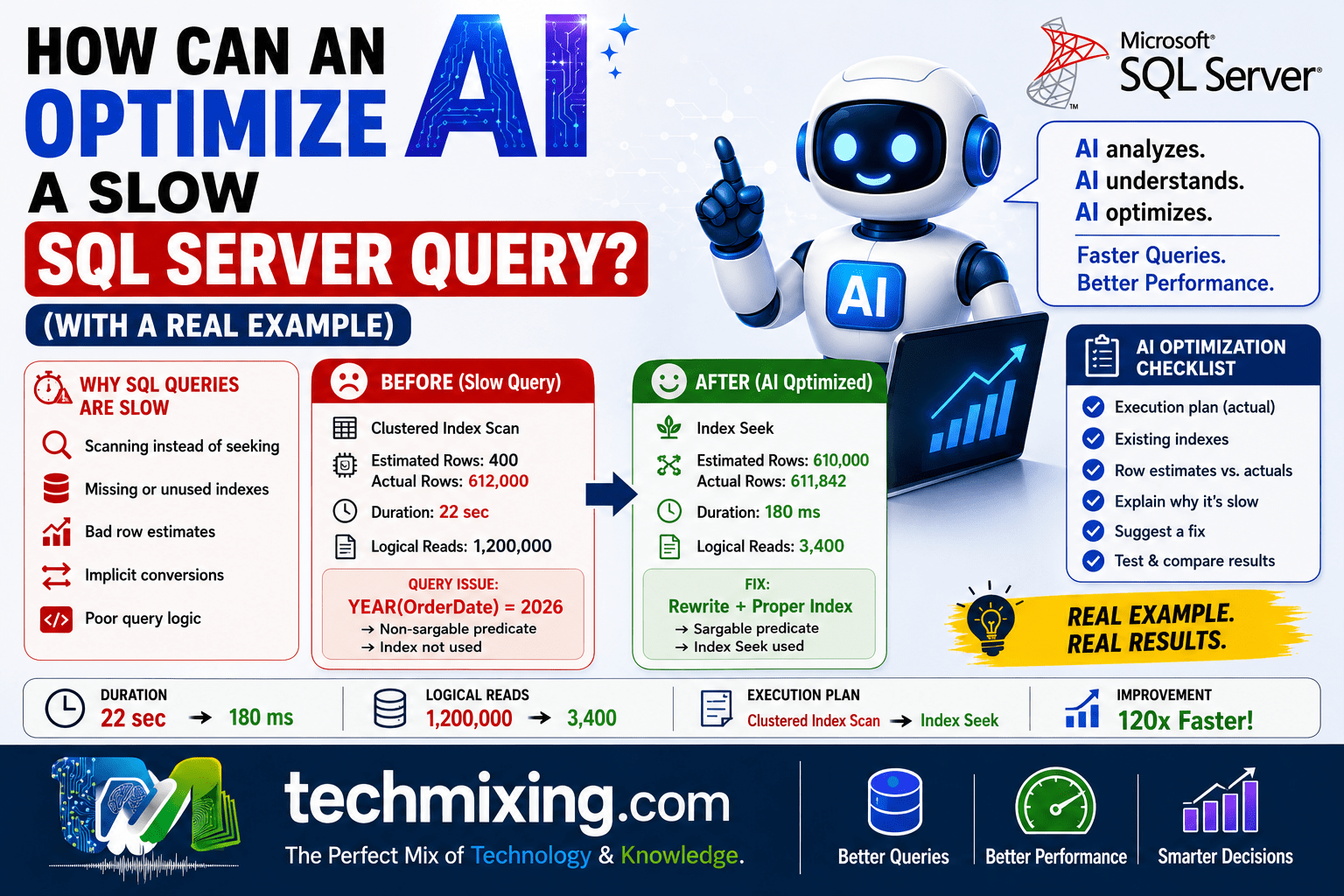
If you’ve ever stared at a query that takes 30 seconds to run and thought “this should take half a second,” you’re not alone. Every DBA and developer has been there. AI tools like Claude, ChatGPT, or Copilot are surprisingly good at spotting why a query is slow and suggesting a fix.
This article explains, how that actually works and walks through a real slow query, start to finish, so you can see & understand the process rather than just hear about it.
First, What Does “Slow” Actually Mean?
A query isn’t slow by accident. It’s slow because SQL Server is doing more work than it needs to. Usually that comes down to one (or more) of these:

- Scanning instead of seeking – reading every row in a table instead of jumping straight to the rows it needs
- Missing or unused indexes – the right index doesn’t exist, or exists but isn’t being used
- Bad row estimates – SQL Server thinks a query will return 10 rows but it actually returns 10 million, so it picks a bad execution plan
- Implicit conversions – comparing a column to the wrong data type, which silently breaks index usage
- Poor query logic – functions wrapped around columns, unnecessary subqueries, or SELECT * pulling far more data than needed
An AI tool doesn’t magically “know” your database is slow. What it’s actually good at is pattern-matching these five problems once you give it the right evidence.
How the AI Actually Helps
Here’s the important part: AI doesn’t optimize a query by staring at the SQL text alone. That’s like a doctor diagnosing you without looking at any test results. The real workflow looks like this:
- You give the AI the query itself
- You give the AI the execution plan (or at least key stats from it)
- You give the AI relevant table/index information
- The AI reasons through what’s expensive and why
- The AI proposes a specific fix which is usually an index, a rewrite, or both
- You test the fix and compare before/after
Skipping steps 2 and 3 is the most common mistake people make. Pasting just the SQL and asking “why is this slow?” gives the AI far less to work with than pasting the SQL plus the execution plan.
A Real Example: The Slow Order Lookup Query
Let’s walk through an actual case. Imagine a Sales.Orders table with 8 million rows, and this query that’s taking 22 seconds:
SELECT OrderID, CustomerID, OrderDate, TotalAmount
FROM Sales.Orders
WHERE YEAR(OrderDate) = 2026
  AND Status = 'Shipped'
ORDER BY OrderDate DESC;
Step 1: Look at the Execution Plan
You run this with “Include Actual Execution Plan” turned on. The plan shows:
- A Clustered Index Scan on
Sales.Orders(reading all 8 million rows) - Estimated rows: 400 vs Actual rows: 612,000, a massive estimate mismatch
- No index used at all, despite an index existing on
OrderDate
Step 2: Feed This to the AI
You’d give the AI something like:
“This query takes 22 seconds. Here’s the query and execution plan. There’s an existing nonclustered index on OrderDate. Why isn’t it being used, and how can I speed this up?”
Step 3: What the AI Would Spot
A well-prompted AI would flag the real culprit immediately: YEAR(OrderDate) = 2026.
Wrapping a column in a function like YEAR() is called a non-sargable predicate. SQL Server can’t use an index on OrderDate efficiently because it has to compute YEAR() for every single row before it can compare it. So it gives up and scans the whole table instead.
Step 4: The AI’s Suggested Fix
Rewrite the WHERE clause so OrderDate is compared directly, without a function wrapped around it:
SELECT OrderID, CustomerID, OrderDate, TotalAmount
FROM Sales.Orders
WHERE OrderDate >= '2026-01-01'
  AND OrderDate < '2027-01-01'
  AND Status = 'Shipped'
ORDER BY OrderDate DESC;
And, since Status is also being filtered on, the AI would likely suggest a better-targeted index:
CREATE NONCLUSTERED INDEX IX_Orders_OrderDate_Status
ON Sales.Orders (OrderDate DESC, Status)
INCLUDE (OrderID, CustomerID, TotalAmount);
Step 5: The Result
After the rewrite and the new index:
| Metric | Before | After |
|---|---|---|
| Duration | 22 seconds | 180 ms |
| Logical reads | 1.2 million | 3,400 |
| Execution plan | Clustered Index Scan | Nonclustered Index Seek |
That’s roughly a 120x improvement, and the fix took less than five minutes once the right information was in front of the AI.
Why the AI Got This Right
Notice the AI didn’t guess. It reasoned from evidence:
- The execution plan showed a scan, not a seek – first red flag
- The estimated vs. actual row mismatch confirmed SQL Server’s assumptions were wrong
- The
YEAR()function aroundOrderDateexplained why the index wasn’t used - The rewrite and the covering index directly addressed the root cause, not just the symptom
This is the same reasoning an experienced DBA would go through. AI just does it faster and won’t get tired of checking the obvious things first.
A Simple Checklist for Using AI on Your Own Slow Queries
- Capture the actual execution plan (not just estimated). Export it as
.sqlplanor paste the XML - Include current indexes on the tables involved
- Note the actual row counts vs. what the plan estimated
- Ask the AI to explain why a plan choice was made, not just “make this faster”
- Always test the suggested fix on a non-production copy first
- Compare logical reads and duration before and after. Don’t just trust that it “feels faster”
Where AI Still Needs a Human
AI is excellent at spotting non-sargable predicates, missing indexes, bad joins, and parameter sniffing symptoms. But it doesn’t know your business context that whether a table is safe to add an index to, whether a “slow” query actually needs to be fast, or whether an index will hurt a heavy write workload elsewhere. Treat the AI’s suggestion as a strong first draft from a very well-read colleague, not a final answer you deploy blindly.
Final Thought
The pattern is always the same: evidence in, reasoning out. Give an AI tool the query, the plan, and the index details, and it can often spot in seconds what might take a human twenty minutes of scrolling through execution plan operators. But the judgment on whether and how to apply the fix in production still belongs to you.
An AI tool doesn’t magically “know” your database is slow. What it’s actually good at is pattern-matching these five problems once you give it the right evidence.
Discover more from Technology with Vivek Johari
Subscribe to get the latest posts sent to your email.

