
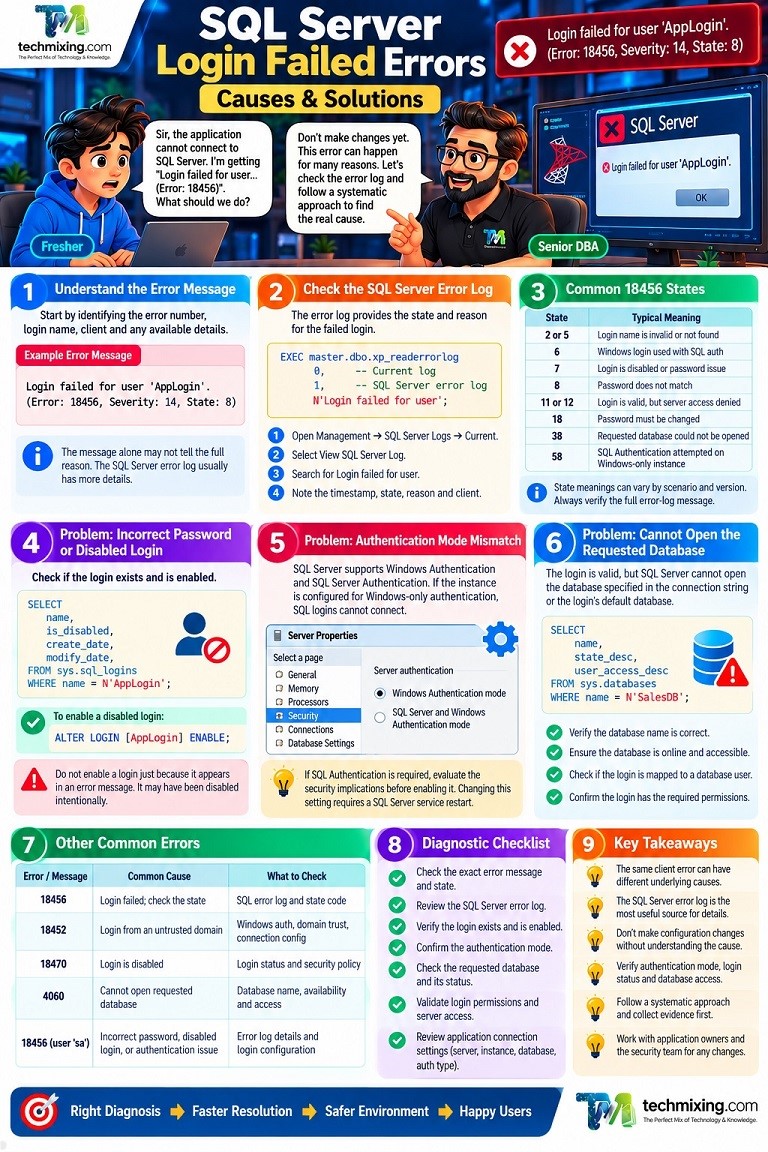
Introduction
A failed SQL Server login can look like a simple authentication issue, but the actual cause may be incorrect credentials, a disabled login, a database access problem, an authentication-mode mismatch, or a connection configuration issue.

For a DBA, the challenge is to identify why the login failed without making unnecessary security or configuration changes.
Imagine receiving a production alert: the application cannot connect to SQL Server, users cannot access a critical report, and the development team says, “The database is down.”
Before restarting SQL Server or changing permissions, check the login failure details. The error message and SQL Server error log often provide the first important clue.
This practical guide explains common SQL Server login failure errors, how to diagnose them, and what to do next.
1. Start With the Exact Error Message
The first step is to identify the error number, login name, client, and reason reported by SQL Server.
| Error or message | Common cause | First thing to check |
|---|---|---|
| Error 18456 | Login failed; the reported state may help identify the reason | SQL Server error log and login state |
| Error 18452 | Login is from an untrusted domain and cannot be used with Windows authentication | Windows authentication, domain trust, and connection configuration |
| Error 18470 | Login is disabled | Login status and security policy |
| Error 4060 | Cannot open the requested database | Database name, availability, and login access |
| Error 18456 with “Login failed for user ‘sa’” | Could be an incorrect password, disabled login, or another authentication issue | Error-log details and login configuration |
These messages are starting points, not definitive diagnoses. The same client-facing error can have different underlying causes.
Important: SQL Server error 18456 often provides more diagnostic detail in the server-side error log than in the message displayed to the client.
2. Check the SQL Server Error Log
For Error 18456, the SQL Server error log is often the most useful diagnostic source because it can include the reason and state code for the failed login.
Connect using an account that has permission to view the error log.
- Expand Management → SQL Server Logs → Current.
- Select View SQL Server Log.
- Search for
Login failed for user. - Record the timestamp, login, state, reason, and client information.
You can also query the current SQL Server error log:
EXEC master.dbo.xp_readerrorlog
    0,             -- Current log
    1,             -- SQL Server error log
    N'Login failed for user';
This filters the current error log for login-failure messages. You may need additional filtering or a different search term to find the corresponding state details.
Common Error 18456 states
| State | Typical interpretation |
|---|---|
| 2 or 5 | Login name is invalid or not found |
| 6 | A Windows login name was used with SQL Server Authentication |
| 7 | Login is disabled, or the password is incorrect |
| 8 | Password mismatch |
| 11 or 12 | Login is recognized, but server access validation failed |
| 18 | Password must be changed |
| 38 | Requested database could not be opened |
| 58 | SQL Server Authentication was attempted against a Windows-only authentication configuration |
State meanings can vary by scenario and SQL Server version. Treat them as diagnostic clues and verify the full error-log message before taking action.
3. Problem: Incorrect Password or Disabled Login
This is a common cause when an application suddenly stops connecting after a credential change or a security update.
Check whether the login exists and is disabled
Run the following as an administrator or an account with permission to view server principals:
SELECT
    name,
    is_disabled,
    create_date,
    modify_date
FROM sys.sql_logins
WHERE name = N'AppLogin';
Replace AppLogin with the actual SQL login name.
If is_disabled = 1, confirm with the application owner or security team that the login should be enabled before changing it.
ALTER LOGIN [AppLogin] ENABLE;Security note: Do not enable a login merely because it appears in an error message. It may have been disabled intentionally.
If the password is incorrect, coordinate a password reset and update the application’s secret store or connection configuration. Avoid placing passwords in scripts, source control, or troubleshooting screenshots.
4. Problem: SQL Server Is Configured for Windows Authentication Only
SQL Server supports Windows Authentication and SQL Server Authentication. If the instance is configured for Windows-only authentication, SQL logins cannot authenticate.
How to check
In SSMS:
- Right-click the server instance and select Properties.
- Open Security.
- Review the Server authentication setting.
If the application is intended to use Windows Authentication, correct the application’s authentication configuration rather than enabling SQL Authentication unnecessarily.
If SQL Authentication is genuinely required, evaluate the security implications before enabling SQL Server and Windows Authentication mode. Changing the authentication mode requires a SQL Server service restart to take effect.
5. Problem: Login Cannot Open the Requested Database
Sometimes the login is valid, but SQL Server cannot open the database specified in the connection string or configured as the login’s default database.
Common causes include:
- The database name is incorrect.
- The database is offline, restoring, or otherwise unavailable.
- The login has not been mapped to a database user.
- The login lacks access to the requested database.
Check database status
SELECT
    name,
    state_desc,
    user_access_desc
FROM sys.databases
WHERE name = N'SalesDB';
Replace SalesDB with the database name.
If the database is online, check whether the login is mapped to a user in that database. For example, a DBA with appropriate permissions can create the mapping when the intended login and database user are confirmed:
USE [SalesDB];
GO

CREATE USER [AppLogin] FOR LOGIN [AppLogin];
Creating a database user does not automatically grant every permission the application needs. Grant only the permissions required by the application.
If the failure is caused by an unavailable default database, a DBA can also change the login’s default database after confirming an appropriate alternative:
ALTER LOGIN [AppLogin]
WITH DEFAULT_DATABASE = [master];
Use master as a troubleshooting or administrative fallback only when appropriate. The application should normally connect directly to its intended database.
6. Problem: Windows Authentication Fails With Error 18452
Error 18452 can occur when SQL Server cannot validate the Windows identity, including situations involving an untrusted domain or authentication configuration problems.
What should you check?
- Is the user signed in to the expected Windows domain?
- Can the client and SQL Server validate the user’s domain credentials?
- Is the domain trust relationship working?
- If the connection uses Kerberos, are the SQL Server Service Principal Names (SPNs) configured correctly?
- Does the problem occur only from an application server, while direct SSMS connections work?
For an application that connects through an intermediate server, investigate the authentication delegation configuration if the error indicates a double-hop problem.
Common mistake: Switching to SQL Authentication without first understanding why Windows Authentication failed. That can introduce unnecessary credential-management and security risks.
7. Problem: The Application Cannot Connect, but SSMS Works
When SSMS connects successfully but an application fails, the issue may be in the application’s connection configuration rather than SQL Server itself.
Check these items:
| Check | What to verify |
|---|---|
| Server name | Correct hostname, instance name, and environment |
| Authentication | SQL Authentication versus Windows Authentication |
| Database | Correct initial catalog or database name |
| Credentials | Correct login and current secret |
| Connection string | No unexpected overrides or stale configuration |
| Identity | Which Windows account or SQL login the application actually uses |
| Network | Whether the application host can reach the SQL Server endpoint |
For example, a development connection string might still point to DEVSQL after an application is deployed to production.
The DBA should verify the target instance and the server-side error log before changing permissions. Microsoft also recommends testing connectivity using the same connection method and authentication configuration as the failing client.
8. Security Best Practices for SQL Server Logins
Resolving a login failure should not mean granting excessive permissions.
- Avoid granting
sysadminordb_ownerjust to make an application connect. - Use Windows Authentication or Microsoft Entra authentication where appropriate for the deployment.
- Grant only the server and database permissions required.
- Store application secrets in an approved secret-management system.
- Audit repeated failed logins and investigate unexpected sources.
- Coordinate password resets and login changes with application owners.
- Avoid disabling security controls to bypass authentication errors.
For production troubleshooting, also record the original configuration before making changes and validate that the application works with its intended least-privilege access afterward.
9. Production Troubleshooting Checklist
DBA incident checklist
- Capture the exact error message, number, timestamp, and affected login.
- Read the SQL Server error log and identify the error state and reason.
- Confirm the correct server instance and authentication method.
- Check whether the login exists and whether it is enabled.
- Verify the password or Windows/domain authentication configuration.
- Check the requested database status and login-to-user mapping.
- Review connection strings and application identity.
- Apply the smallest appropriate fix with authorization.
- Test the connection using the application’s actual authentication method.
- Document the root cause and review security implications.
10. Important Permission and Version Notes
- Reading the SQL Server error log through SSMS requires appropriate permissions.
- Access to server-level catalog views and DMVs may require elevated permissions depending on the SQL Server version.
xp_readerrorlogis a system extended stored procedure; access should be restricted to authorized administrators.- SQL Server authentication options, error-state details, and authentication troubleshooting steps can vary by version and deployment type. Azure SQL Database, Azure SQL Managed Instance, and SQL Server running on a virtual machine do not have identical administration models.
For detailed state-code interpretations, consult Microsoft’s official reference: MSSQLSERVER_18456 — Microsoft Learn.
Summary
When SQL Server reports “Login failed,” don’t guess and don’t immediately grant more permissions. Start with the exact error, examine the server-side error log, identify the cause, and apply the smallest secure fix.
That approach helps restore connectivity faster while avoiding unnecessary changes to production security.
Discover more from Technology with Vivek Johari
Subscribe to get the latest posts sent to your email.

