
Introduction
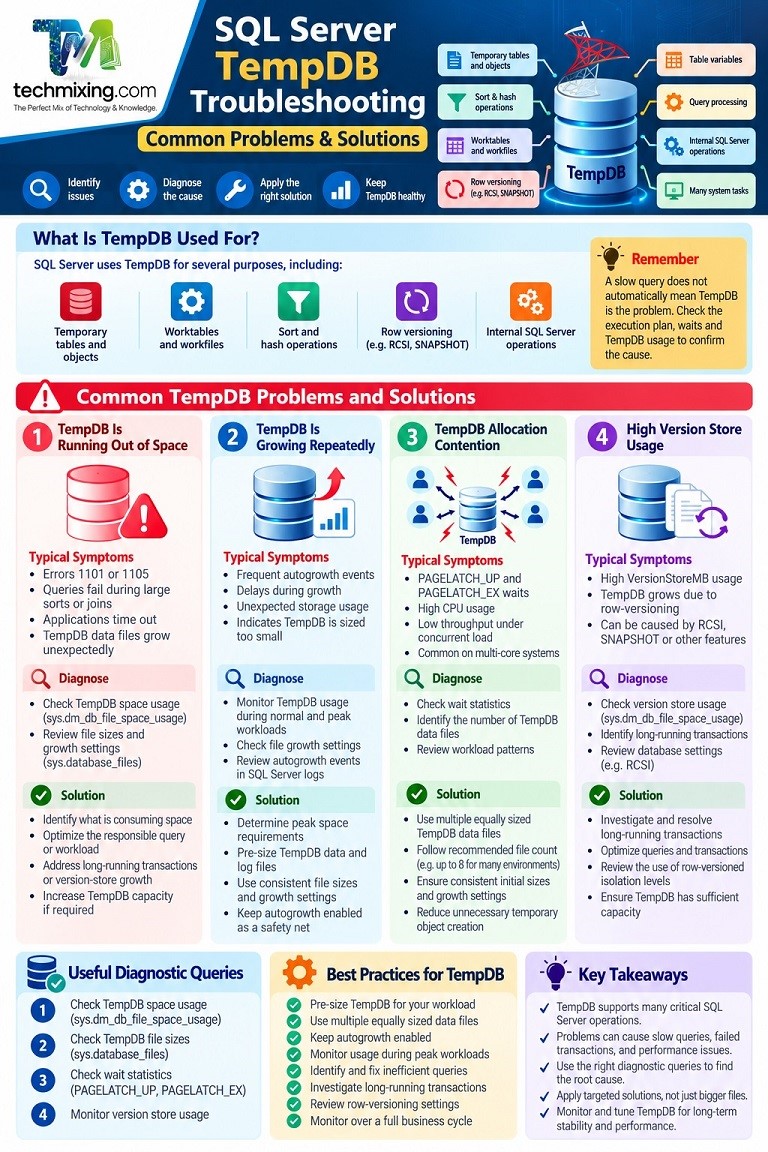
TempDB is one of the most important system databases in SQL Server. It supports temporary tables, table variables, sorting, hash operations, row versioning, and many internal database operations.

When TempDB experiences problems, the symptoms can appear in different places: queries become slow, reports time out, applications experience blocking, or SQL Server reports that TempDB has run out of space.
The challenge for a DBA is to identify what is consuming TempDB, why it is happening, and which action will solve the actual problem.
This article covers common TempDB problems, diagnostic queries, real-world examples, and solutions you can apply safely.
1. Understand What TempDB Is Used For
SQL Server uses TempDB for several purposes:
- Temporary tables and temporary objects.
- Worktables and workfiles created for query processing.
- Sort and hash operations that require workspace.
- Row versions used by features such as row-versioned isolation and other versioning operations.
- Internal operations performed by the SQL Server engine.
For example, consider this query:
SELECT CustomerID, SUM(OrderAmount) AS TotalAmount
FROM dbo.Orders
GROUP BY CustomerID
ORDER BY TotalAmount DESC;
Depending on the execution plan, SQL Server may use memory for aggregation and sorting. If the required workspace cannot be handled entirely in memory, some operations may spill to TempDB.
Important: A slow query does not automatically mean TempDB is the problem. You must examine the execution plan, wait information, and TempDB usage to confirm the cause.
2. Problem: TempDB Is Running Out of Space
One of the most common TempDB issues occurs when a query or workload consumes more space than TempDB can provide.
Typical symptoms include:
- Errors such as 1101 or 1105 when SQL Server cannot allocate space.
- Queries failing during large sorts, joins, or index operations.
- Applications timing out or reporting failed transactions.
- TempDB data files growing unexpectedly.
Step 1: Check how TempDB space is being used
Run this query in SQL Server Management Studio:
USE tempdb;
GO

SELECT
    SUM(unallocated_extent_page_count) / 128.0
        AS FreeSpaceMB,
    SUM(user_object_reserved_page_count) / 128.0
        AS UserObjectsMB,
    SUM(internal_object_reserved_page_count) / 128.0
        AS InternalObjectsMB,
    SUM(version_store_reserved_page_count) / 128.0
        AS VersionStoreMB
FROM sys.dm_db_file_space_usage;
This shows a snapshot of TempDB data-file space usage. The categories help narrow down the investigation.
| Result | What it may indicate |
|---|---|
High UserObjectsMB | Temporary tables, table variables, or other user-created temporary objects |
High InternalObjectsMB | Worktables, sort/hash spills, or other internal work |
High VersionStoreMB | Row-versioning activity requiring investigation |
Low FreeSpaceMB | TempDB data files have little unallocated space remaining |
These values are not necessarily the same as free disk space on the underlying drive. Also, a high usage category identifies where to investigate; it does not automatically identify the session responsible.
Step 2: Check TempDB file sizes and growth settings
USE tempdb;
GO

SELECT
    name AS FileName,
    type_desc AS FileType,
    size / 128.0 AS CurrentSizeMB,
    CASE
        WHEN max_size = -1 THEN 'Unlimited'
        WHEN max_size = 0 THEN 'No growth'
        ELSE CAST(max_size / 128.0 AS VARCHAR(20))
    END AS MaxSizeMB,
    CASE
        WHEN is_percent_growth = 1
            THEN CAST(growth AS VARCHAR(20)) + '%'
        ELSE CAST(growth / 128.0 AS VARCHAR(20)) + ' MB'
    END AS GrowthSetting
FROM sys.database_files;
Check whether the files have enough capacity, whether growth is enabled, and whether the underlying drive has sufficient free space.
How to fix it: First identify what is consuming space. Then optimize the responsible query or workload, address long-running transactions or version-store growth, and increase TempDB capacity if workload requirements justify it.
Do not simply increase the file size without investigating the reason for the growth.
3. Problem: TempDB Is Growing Repeatedly
Repeated autogrowth events can create delays, consume storage unexpectedly, and indicate that TempDB was sized too small for the workload.
Imagine a report runs every morning and processes millions of rows. During the report, TempDB grows to handle the extra workload. When SQL Server restarts, TempDB returns to its configured initial file sizes. If the same workload runs again, TempDB may need to grow again.
What should you do?
- Monitor TempDB usage during normal and peak workloads.
- Run representative reporting, ETL, and index-maintenance jobs in a test environment.
- Determine the peak space requirement, including concurrent activity and growth headroom.
- Pre-size TempDB data and log files according to observed usage.
- Keep autogrowth enabled as a safety net.
Microsoft recommends preallocating TempDB space for the normal workload while retaining autogrowth for unexpected requirements. Data files should have consistent initial sizes and growth setting
Common mistake: Setting a very large file size without checking storage capacity or the workload’s actual needs.
Pro tip: Monitor TempDB over a representative business cycle, not just during a quiet period.
4. Problem: TempDB Allocation Contention
Allocation contention happens when many concurrent sessions compete to allocate or release TempDB pages.
You may see waits such as:
PAGELATCH_UPPAGELATCH_EX
These waits can be associated with allocation pages such as PFS, GAM, or SGAM pages.
Important distinction: PAGELATCH indicates contention for an in-memory page latch; it is not the same as physical disk I/O latency. Confirm the resource and workload before changing the configuration.
Check the current wait information
SELECT TOP (20)
    wait_type,
    waiting_tasks_count,
    wait_time_ms,
    signal_wait_time_ms
FROM sys.dm_os_wait_stats
WHERE wait_type LIKE 'PAGELATCH%'
ORDER BY wait_time_ms DESC;
This query shows cumulative wait statistics since the last reset or SQL Server startup. It does not prove that TempDB is the source of the waits, because these waits can occur in other databases too.
To investigate further, examine active requests and their wait resources during the incident, then determine whether the contended pages belong to TempDB.
Practical solutions
- Verify whether allocation contention is actually occurring.
- Review the number and configuration of TempDB data files.
- Keep TempDB data files at equal initial sizes with equal growth increments.
- On older versions, assess whether adding data files in measured increments reduces contention.
- Review whether the application repeatedly creates and drops temporary objects unnecessarily.
As a starting point, Microsoft recommends up to eight TempDB data files: generally one per logical processor when the count is eight or fewer, or eight when there are more than eight logical processors. If contention remains, test increasing the count in increments of four and measure the result. Workload and SQL Server version matter, so this is a starting point not a universal rule.
SQL Server 2019 introduced memory-optimized TempDB metadata for workloads affected by temporary-object metadata contention. Consider it only after confirming that this specific type of contention is a significant bottleneck.
5. Problem: Version Store Is Consuming Too Much Space
The version store keeps older row versions needed by certain SQL Server operations, including row-versioned isolation levels such as SNAPSHOT and READ COMMITTED SNAPSHOT.
When a transaction needs an older version of a row, SQL Server may retain that version until it is no longer needed. Long-running transactions can delay version cleanup and cause TempDB usage to increase.
Practical example
Suppose an application starts a transaction and leaves it open for 30 minutes. During that period, other sessions update many rows.
If those updates generate row versions that the long-running transaction still needs, SQL Server may need to retain those versions longer than expected.
Check version-store usage by database
Run this query in the context of tempdb:
USE tempdb;
GO

SELECT
    DB_NAME(database_id) AS DatabaseName,
    reserved_page_count / 128.0 AS VersionStoreMB
FROM sys.dm_tran_version_store_space_usage
ORDER BY reserved_page_count DESC;
This DMV reports traditional version-store space usage attributed to each database. Availability and permissions depend on SQL Server version and deployment type.
How to troubleshoot it
- Identify which database is generating substantial version-store usage.
- Investigate long-running transactions and snapshot-related transactions.
- Review application code for transactions that remain open unnecessarily.
- Monitor whether version-store usage decreases after the relevant transactions finish.
- Verify whether the workload uses additional versioning features.
Do not assume that disabling row versioning is the right solution. First determine which feature requires the versions and whether the transaction or workload can be improved.
6. Problem: Queries Are Slow Because of TempDB Spills
SQL Server often performs sorting, hashing, and other operations using memory. If an operation cannot complete in its available memory workspace, it may spill intermediate data to TempDB.
For example, a large ORDER BY, GROUP BY, or hash join may generate substantial TempDB activity.
Consider this query:
SELECT
    CustomerID,
    SUM(OrderAmount) AS TotalAmount
FROM dbo.Orders
GROUP BY CustomerID
ORDER BY TotalAmount DESC;
The query is valid, but its performance depends on factors such as the amount of data, available memory, data distribution, and execution plan.
How to investigate
- Capture the actual execution plan.
- Look for sort warnings and hash spill warnings.
- Review the estimated versus actual number of rows.
- Check whether statistics are current and whether predicates are selective.
- Inspect memory-grant information and relevant waits.
Recommended solutions
- Update statistics when evidence indicates they are stale or inaccurate.
- Review indexes and query predicates to reduce unnecessary data processing.
- Rewrite inefficient joins or aggregations where appropriate.
- Investigate memory-grant issues rather than blindly increasing server memory.
- Test whether the optimized query reduces spills and execution time.
Common mistake: Adding TempDB data files to fix every slow query. More files do not fix a query that spills because its plan, cardinality estimates, or memory grant is unsuitable.
7. Problem: The TempDB Transaction Log Is Full
TempDB has both data files and a transaction log file. Free space in the data files does not guarantee that the log has sufficient space.
Long-running transactions, heavy temporary-object activity, and other log-intensive operations can cause the TempDB log to grow.
Check TempDB log usage
USE tempdb;
GO

SELECT
    total_log_size_in_bytes / 1048576.0
        AS TotalLogSizeMB,
    used_log_space_in_bytes / 1048576.0
        AS UsedLogSpaceMB,
    used_log_space_in_percent
FROM sys.dm_db_log_space_usage;
What to do next
- Check for long-running transactions.
- Investigate the workload running when the log filled.
- Check the log file’s configured growth and maximum size.
- Verify available disk space.
- Increase the log file’s capacity if the workload requires it and storage is available.
Avoid repeatedly shrinking the log file. Shrinking does not address the cause and can lead to repeated growth events.
8. TempDB Configuration Best Practices
Use this checklist when reviewing a SQL Server installation.
| Area | Recommended practice |
|---|---|
| Initial sizing | Size files for normal and peak workload requirements |
| Data file count | Start with Microsoft’s guidance and validate against actual contention |
| File sizes | Keep TempDB data files equally sized |
| Autogrowth | Enable growth with consistent, sensible increments |
| Storage | Use storage that meets the workload’s I/O requirements |
| Monitoring | Track space usage, growth events, waits, and workload patterns |
| Query design | Reduce unnecessary sorting, hashing, and temporary-object usage |
| Version store | Monitor row-versioning activity and long-running transactions |
Microsoft’s recommendations also note that TempDB is recreated when the SQL Server Database Engine starts. Its files therefore need suitable initial sizes, even if they grew substantially during the previous uptime.
9. Common TempDB Troubleshooting Mistakes
Avoid these common mistakes when working on production systems:
- Adding data files without diagnosing contention. More files are not automatically better.
- Disabling autogrowth. This can turn an unexpected space requirement into an allocation failure.
- Shrinking TempDB repeatedly. This treats the file size, not the underlying workload.
- Ignoring long-running transactions. They can contribute to version retention and resource consumption.
- Blaming TempDB for every slow query. Confirm spills, waits, space usage, or I/O evidence first.
- Making several changes simultaneously. Change one thing at a time and measure the result.
10. Production Troubleshooting Workflow
DBA troubleshooting checklist
- Confirm the symptom: space error, slow query, blocking, or high waits.
- Check TempDB data-file free space and log utilization.
- Identify user-object, internal-object, or version-store consumption.
- Inspect active sessions, execution plans, and relevant wait resources.
- Identify the root cause before changing file configuration.
- Apply the smallest appropriate fix in a controlled manner.
- Re-run the workload and compare space usage and performance.
- Document the cause and establish monitoring where needed.
Summary
TempDB problems can originate from insufficient space, allocation contention, version-store growth, query spills, or transaction-log pressure. The correct fix depends on the actual cause.
As a DBA, measure TempDB usage first, identify the workload responsible, fix the root cause, and validate the outcome under realistic load.
Discover more from Technology with Vivek Johari
Subscribe to get the latest posts sent to your email.

