
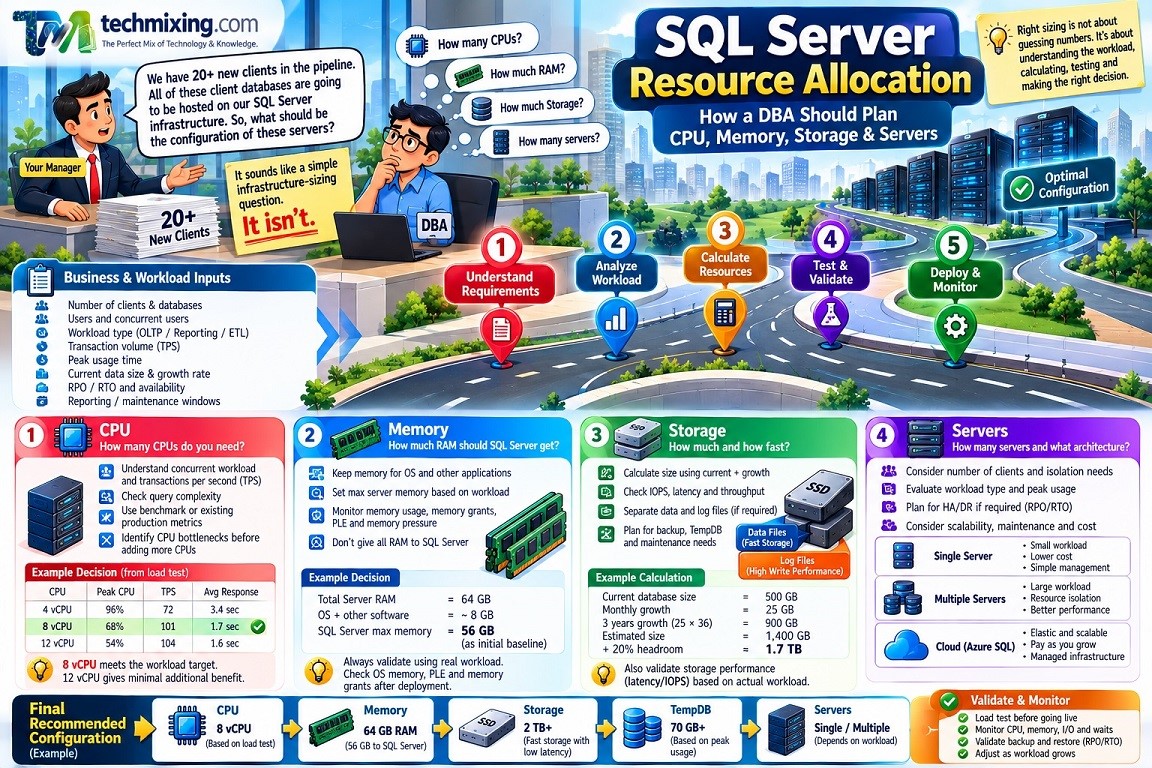
Introduction
One day, your manager walks into your office and says:

“We have 20+ new clients in the pipeline. All of these client databases are going to be hosted on our SQL Server infrastructure. So, what should be the configuration of these servers?”
It sounds like a simple infrastructure-sizing question.
It isn’t.
Your first instinct might be to ask:
- How many CPUs?
- How much RAM?
- How much storage?
- How many SQL Servers do we need?
But these questions come after understanding the workload.
Before recommending a server configuration, a DBA needs to understand:
- How many users will each application have?
- How many users will be active concurrently?
- What type of workload will run – OLTP, reporting, ETL or mixed?
- What is the expected transaction volume?
- When is the peak workload?
- How large are the databases?
- How quickly will they grow?
- What are the RPO and RTO requirements?
- Does every client have the same workload?
- Do some clients require higher availability or isolation?
The difficult part isn’t asking these questions.
The difficult part is:
How do you interpret the answers and turn them into a practical CPU, memory, storage and server configuration?
This article shows how to use those answers to decide the right CPU, memory, storage and server configuration.
1. The Resource Allocation Process
A practical DBA approach is:
Business Requirements
↓
Workload Information
↓
Current/Baseline Measurements
↓
Resource Calculation
↓
Initial Configuration
↓
Load/Performance Testing
↓
Production Validation
The important word is initial.
Resource allocation is rarely a one-time mathematical exercise. The first configuration should be validated against real workload behavior.
2. Start With the Business Questions
Before discussing CPU or memory, ask:
| Question | Why do we ask it? |
|---|---|
| How many users? | Helps understand workload/concurrency |
| How many concurrent users? | More useful than total user count |
| What type of workload? | OLTP, reporting, ETL, mixed |
| Peak usage time? | Determines peak resource requirements |
| Transactions per second? | Helps estimate workload intensity |
| Database size? | Determines storage requirement |
| Monthly growth? | Determines future capacity |
| RPO? | Determines backup/recovery design |
| RTO? | Influences recovery and infrastructure design |
| Availability requirement? | Determines HA/DR architecture |
| Reporting/ETL windows? | Identifies competing workloads |
But don’t stop here.
The next step is to interpret the answers.
3. CPU Allocation – How Do I Decide 4, 8 or 16 CPUs?
This is one of the most common questions.
Suppose the application team says:
“We will have 500 users.”
That does not mean you can calculate:
500 users = 16 CPUs
There is no reliable universal formula like that.
What matters is concurrent workload.
Ask these additional questions
- How many users are active at the same time?
- How many requests/transactions occur per second?
- What is the peak TPS?
- Are queries simple or complex?
- Is there reporting?
- Is there ETL?
- Are there batch jobs?
- What is the expected response time?
Example
Suppose the application team provides:
- 500 registered users
- 80–100 concurrent users
- 50 transactions/sec normally
- 100 transactions/sec during peak
- OLTP workload
- Average query response target < 2 seconds
You still cannot say:
“Therefore we need 8 CPUs.”
You need a benchmark or a comparable production baseline.
Suppose a performance test produces:
| CPU | Peak CPU | TPS | Avg Response |
|---|---|---|---|
| 4 vCPU | 96% | 72 | 3.4 sec |
| 8 vCPU | 68% | 101 | 1.7 sec |
| 12 vCPU | 54% | 104 | 1.6 sec |
Now we have evidence.
4 CPU: insufficient.
8 CPU: meets the workload target.
12 CPU: provides little additional throughput.
Decision
Start with 8 vCPU.
Why?
Because it satisfies the tested workload and response-time requirement without paying for resources that provide little additional benefit.
What if there is no benchmark?
Then use:
- Existing production server metrics
- Similar workload from another environment
- Vendor/application sizing guidance
- Load testing
- Conservative initial sizing followed by monitoring
Don’t manufacture a CPU formula.
4. Don’t Increase CPU Before Finding the CPU Problem
Suppose an existing server has:
8 CPUs
and CPU is reaching:
95–100%
The immediate reaction might be:
“Add more CPUs.”
Stop.
First determine why.
Check:
- Top CPU-consuming queries
- Execution plans
- Query Store
- CPU-related waits
- Parallelism
- Recompilations
- Missing/inefficient indexes
- Statistics
- Application workload
- SQL Agent jobs
- Non-SQL processes
You may discover that one badly written query is responsible for the problem.
Fixing that query may be more effective than upgrading from 8 to 16 CPUs.
5. CPU Topology Also Matters
CPU allocation is not only about the number of CPUs.
You also need to understand:
- Physical cores
- Logical processors
- NUMA
- Virtual CPU allocation
- Hyper-threading/SMT
- VM CPU configuration
These affect SQL Server behavior and settings such as MAXDOP.
For example, don’t simply say:
“The server has 32 CPUs, so MAXDOP should be 32.”
MAXDOP recommendations depend on SQL Server version and CPU/NUMA topology. Microsoft provides version-specific guidance for this configuration. Microsoft Learn
So the decision becomes:
CPU count → topology → SQL Server version → workload → MAXDOP → testing
6. Memory Allocation – How Much RAM Should SQL Server Get?
Now suppose the customer says:
“The application needs 64 GB RAM.”
What does that actually mean?
You need to distinguish between:
Total server RAM
and
Memory available to SQL Server.
Suppose:
Server RAM = 64 GB
The server also needs memory for:
- Windows/Linux
- Monitoring agents
- Antivirus/security software
- Backup software
- Other applications
- Drivers and OS services
Therefore, don’t automatically configure:
max server memory = 64 GB
SQL Server’s max server memory should leave appropriate memory for the operating system and other requirements. Microsoft recommends configuring the option to prevent SQL Server from consuming memory needed by the OS and other applications. Microsoft Learn
Example
Suppose you have:
64 GB physical RAM
and determine that approximately:
8 GB should remain available for the OS and other software.
An initial SQL Server memory target could therefore be around:
56 GB
But this is only a starting point.
Then monitor:
- Available OS memory
- SQL Server memory usage
- Memory grants
- Page Life Expectancy
- Memory pressure
- Query performance
If the workload demonstrates pressure, investigate why before simply adding RAM.
7. How Do You Decide Whether More Memory Is Needed?
Suppose:
Server RAM = 64 GB
SQL Server max memory = 56 GB
But users complain that queries are slow.
Don’t conclude:
“We need 128 GB.”
Look for evidence.
Check for
OS memory pressure
If the OS is running low on memory, check whether SQL Server is using too much memory or the server needs more RAM.
Memory Grants Pending
If queries are waiting for memory, check whether SQL Server has enough memory and which queries are asking for too much.
Large memory grants
A query requesting excessive memory may have:
- Bad cardinality estimates
- Large sorts
- Hash operations
- Incorrect statistics
- Poor query design
Increasing RAM may hide the real problem.
Decision example
Suppose:
- SQL Server memory is high
- OS still has sufficient memory
- No significant memory pressure
- One query requests 20 GB
- Execution plan shows a huge hash operation
- Estimated rows = 10,000
- Actual rows = 20 million
The first action should probably be:
Investigate the query/cardinality problem
—not:
Buy more RAM.
This is an important DBA mindset.
8. Memory Grant – How Do We Interpret It?
Suppose a query has:
Requested memory = 8 GB
Granted memory = 8 GB
Used memory = 1 GB
That doesn’t automatically mean the server needs more memory.
It could indicate that the optimizer significantly overestimated the memory requirement.
On the other hand:
Requested = 2 GB
Granted = 2 GB
Query spills to TempDB
could indicate insufficient execution memory or incorrect estimates.
Therefore:
Memory grant analysis must be performed together with the execution plan and estimated vs actual rows.
9. Storage Allocation – Start With Capacity AND Performance
Storage planning has two separate questions:
Question 1
How much storage do we need?
Question 2
How fast must that storage be?
A 2 TB slow disk and a 2 TB high-performance storage system are very different resources.
10. How to Calculate Storage Capacity
Suppose:
Current database = 500 GB
Historical growth:
25 GB/month
Expected growth:
30 GB/month
Planning period:
3 years
Future growth:
30 × 36 = 1,080 GB
Estimated database size:
500 + 1,080 = 1,580 GB
Now add:
- Free-space headroom
- Index growth
- Maintenance requirements
- Temporary requirements
- Other databases
- Operational safety margin
You might decide that approximately:
2 TB+ usable capacity
is appropriate.
The important point is that we calculated it from growth, not simply from today’s database size.
11. Data File Growth – Don’t Use Today’s Size as the Final Size
Suppose a database is currently:
500 GB
but grows:
30 GB/month
A 500 GB disk allocation is obviously insufficient for a long-term production design.
Instead:
Current size + projected growth + operational headroom
should drive the capacity decision.
Monitor historical growth using database/file metrics.
Example:
SELECT
    name,
    size * 8.0 / 1024 AS SizeMB,
    growth,
    is_percent_growth
FROM sys.database_files;
Avoid frequent tiny autogrowth events.
12. Storage Performance – How Do You Decide?
Suppose two storage options are available:
Storage A
- 2 TB
- 20 ms average latency
Storage B
- 2 TB
- 3 ms average latency
Capacity is identical.
But the workload may behave very differently.
For an I/O-intensive SQL Server workload, Storage B may be a much better choice.
Therefore collect:
- Read latency
- Write latency
- IOPS
- Throughput
- Queue length
- Read/write ratio
Don’t ask only:
“Is it SSD?”
Ask:
“Does this storage meet the workload’s I/O requirements?”
13. Transaction Log Storage Is Different
The transaction log has a different I/O pattern from database data files.
The log is heavily dependent on sequential write performance and transaction activity.
Suppose:
- High transaction volume
- High commit rate
- Log flush latency is high
You may have a log-storage bottleneck.
Moving the log to faster storage may provide more benefit than adding CPU.
This is why resource allocation must follow the bottleneck.
14. TempDB – How Do We Decide the Size?
Don’t use:
“TempDB should be 10% of the database.”
There is no universal percentage.
TempDB requirements depend on:
- Queries
- Sorts
- Hash operations
- Temporary tables
- Version store
- Index maintenance
- ETL
- Concurrent workload
Microsoft recommends reproducing representative workload, monitoring TempDB usage and using observed maximum usage to plan capacity. Microsoft Learn
Example
Testing shows:
Normal TempDB usage = 30 GB
Peak workload = 55 GB
Index maintenance peak = 70 GB
Then a production configuration should provide sufficient headroom above that observed peak.
The answer isn’t:
“TempDB = 10% of database.”
The answer is:
“Our workload demonstrates that TempDB requires approximately X GB plus appropriate headroom.”
15. TempDB File Count
For current SQL Server guidance, Microsoft recommends a starting point based on logical processors:
- Up to 8 logical processors → start with the same number of TempDB data files
- More than 8 → start with 8
- If allocation contention remains, consider increasing in groups of four while monitoring the result. Microsoft Learn
For example:
4 logical processors
→ Start with 4 TempDB data files.
8 logical processors
→ Start with 8.
16 logical processors
→ Start with 8.
If contention continues:
8 → 12 → 16
while monitoring.
Don’t create 16 files merely because the server has 16 CPUs.
16. Server Sizing – How Do You Choose the Server?
Now combine everything.
Suppose your workload analysis produces:
CPU
8 vCPU required during peak testing.
Memory
56 GB SQL Server memory required.
Database
1.5 TB currently/projected.
TempDB
70 GB peak observed.
Storage
Low-latency storage required.
RPO
15 minutes.
RTO
1 hour.
Now you can start designing the server.
For example:
Server
- 8–12 vCPU
- 64–96 GB RAM
- High-performance storage
- Adequate data capacity
- Separate/appropriately prioritized log storage
- TempDB with sufficient capacity
- Backup storage
- Monitoring
Notice what happened.
We didn’t start with:
“Let’s buy a 16 CPU / 128 GB server.”
We started with the workload requirements and worked toward the infrastructure.
17. How to Read the Customer’s Answers
When someone gives you an answer, don’t just record it.
Interpret it.
| Customer says | DBA should think |
|---|---|
| “500 users” | How many are concurrent? |
| “24×7 application” | What is the peak workload window? |
| “Database is 500 GB” | What is monthly growth? |
| “It grows 30 GB/month” | Calculate future capacity |
| “Queries must finish in 2 sec” | This requires performance testing |
| “We need 99.99% availability” | Single server may not be sufficient |
| “We can lose 15 minutes of data” | Design RPO around ≤15 minutes |
| “System must recover in 1 hour” | Validate RTO through restore/DR testing |
| “Reports run at midnight” | Check resource contention with maintenance |
| “We have 64 GB RAM” | Determine OS + SQL Server memory requirements |
| “CPU reaches 90%” | Find what consumes CPU before adding CPU |
| “Disk has 2 TB” | Capacity alone isn’t enough; check latency/IOPS |
| “TempDB is 100 GB” | Ask whether that is measured requirement or arbitrary sizing |
This is the DBA interpretation layer.
18. A Practical Resource Allocation Example
Let’s put everything together.
Requirement
An organization is launching an OLTP application.
The customer provides:
- 1,000 registered users
- 150 concurrent users
- 80 TPS normal
- 150 TPS peak
- Current database: 400 GB
- Expected growth: 25 GB/month
- RPO: 15 minutes
- RTO: 1 hour
- 24×7 application
- Reporting during business hours
Step 1 — CPU
Load testing:
| CPU | Peak CPU | TPS | Response |
|---|---|---|---|
| 4 | 95% | 105 | 3.1 sec |
| 8 | 72% | 154 | 1.8 sec |
| 12 | 59% | 160 | 1.7 sec |
Decision: 8 vCPU
Why?
It meets the tested peak workload and response target.
Step 2 – Memory
Server has:
64 GB RAM
Testing shows the workload performs well with approximately:
50–56 GB available to SQL Server
Reserve memory for OS and other applications.
Decision: configure an appropriate max server memory value rather than giving SQL Server all 64 GB.
Step 3 — Storage
Current:
400 GB
Growth:
25 GB/month
Three-year projected growth:
25 × 36 = 900 GB
Projected database:
400 + 900 = 1,300 GB
Add operational headroom.
Decision: plan for >1.3 TB usable database capacity, with additional consideration for backups, TempDB and other databases.
Step 4 – TempDB
Testing shows:
Peak TempDB usage = 60 GB
Plan sufficient capacity above observed peak.
Configure the appropriate number of equally sized TempDB data files according to SQL Server guidance and actual contention.
Step 5 – Backup
RPO:
15 minutes
Therefore the backup strategy must be capable of recovering to within the required 15-minute data-loss window.
Step 6 – Recovery
RTO:
1 hour
Don’t simply document:
“Restore should take less than one hour.”
Actually test it.
Backup → Restore → Validate → Measure
If the restore takes 2 hours, the architecture does not meet the requirement.
19. The Final Decision Matrix
| Resource | Input | How to interpret | Decision |
|---|---|---|---|
| CPU | Concurrent workload + TPS + benchmark | Does CPU meet peak workload without excessive utilization? | Select CPU based on tested workload |
| Memory | Working set + OS needs + query grants | Is there memory pressure? | Set SQL memory with OS headroom |
| Data Storage | Current size + growth | How much capacity is needed over planning period? | Current + projected growth + headroom |
| Storage Performance | IOPS + latency | Can storage satisfy workload I/O? | Select storage based on measured workload |
| Log Storage | Write workload + latency | Are log flushes becoming a bottleneck? | Prioritize low-latency storage |
| TempDB | Peak usage + features | How much TempDB does workload actually consume? | Size from observed peak + headroom |
| TempDB Files | CPU topology + contention | Is allocation contention occurring? | Start with Microsoft guidance, then validate |
| Backup | RPO | How much data can business lose? | Design backup frequency accordingly |
| Recovery | RTO | How quickly must service return? | Test restore/DR time |
| Server | All above | Can the complete architecture meet requirements? | Choose server based on workload |
20. The Golden Rule of Resource Allocation
A DBA should never say:
“8 CPUs is best practice.”
or:
“128 GB RAM is enough.”
without context.
Instead say:
“Based on the workload, benchmark results, growth projections and business requirements, this configuration is our recommended starting point.”
Then validate it.
The complete thought process should be:
Ask → Understand → Measure → Calculate → Configure → Test → Monitor → Adjust
That is resource allocation.
Not simply selecting a bigger server.
Version & Permission Notes
The exact configuration recommendations can depend on the SQL Server version, edition, operating system, virtualization platform and CPU topology.
For example, MAXDOP guidance is version- and topology-dependent, and SQL Server 2022 introduced Degree of Parallelism Feedback. Microsoft Learn
TempDB behavior and capabilities also vary by version. SQL Server 2019 introduced several TempDB scalability improvements, SQL Server 2022 added further allocation improvements, and SQL Server 2025 introduces additional TempDB capabilities such as TempDB space resource governance. Microsoft Learn
Before changing a production configuration, confirm:
- SQL Server version and edition
- CPU/NUMA topology
- Current configuration
- Workload characteristics
- Required permissions
- Change-management approval
- Rollback plan
For configuration changes, the executing account may need elevated server-level permissions. If you don’t have those permissions, don’t work around the security boundary. Document what you need, why you need it, and involve the DBA/infrastructure/security team.
Discover more from Technology with Vivek Johari
Subscribe to get the latest posts sent to your email.

