
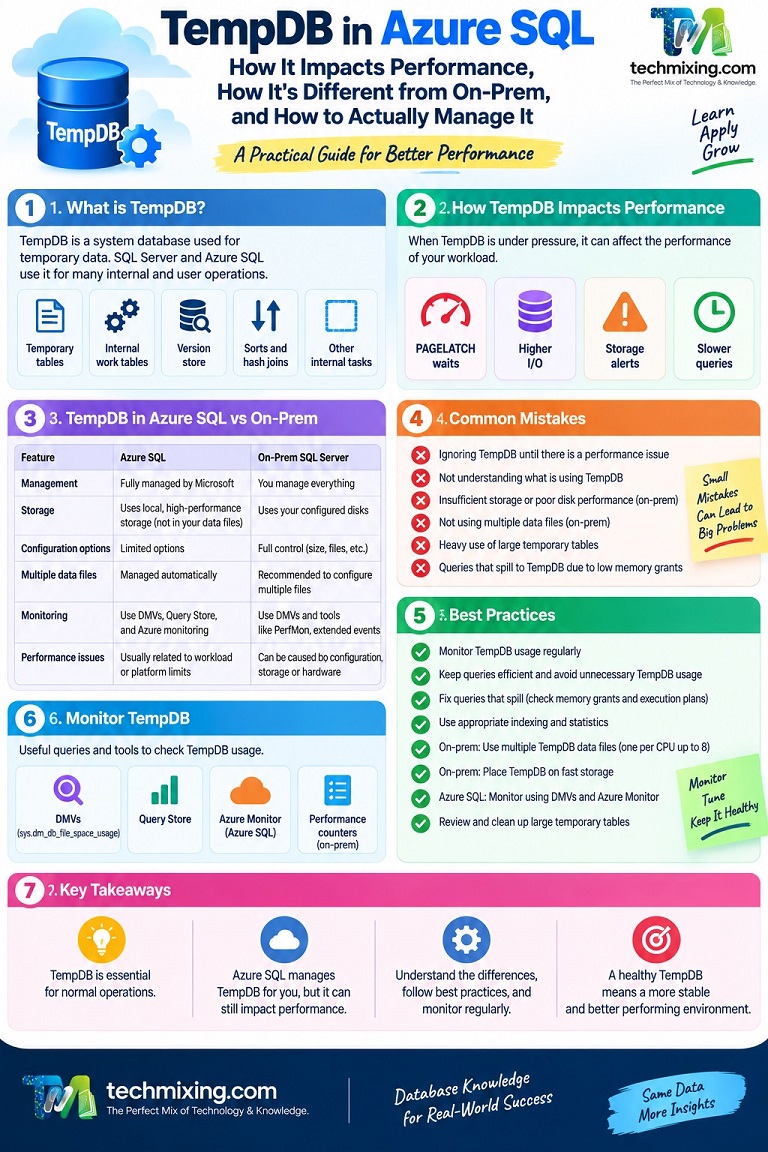
TempDB is a database that is easy to overlook until it starts causing performance problems. When that happens, you may see PAGELATCH waits, storage alerts, or other issues that are not easy to trace back to the real cause.
This article explains what TempDB does, how it works differently in Azure SQL and on-premises SQL Server, common mistakes that can cause problems, and practical best practices you can use to manage it better.
What tempdb actually does?
Every database on an instance shares one tempdb, and it’s doing more work than most people realize. Four main categories of activity all compete for the same space is shown below:-

- Temporary objects:
#temptables,##global temptables, and table variables - Version store: the row-versioning mechanism behind Read Committed Snapshot Isolation (RCSI) and Snapshot Isolation, which Azure SQL Database uses by default
- Internal work tables: Temporary tables that SQL Server creates behind the scenes to perform certain operations. For example, they may be used when sorting or joining data requires more memory than is available.
- Index and online operations: online index rebuilds and certain other maintenance operations use tempdb as workspace
Here’s the important part: all of this is shared, system-wide. A completely unrelated query on a completely different database, if it’s on the same instance/server, can cause tempdb contention that slows your query down. That’s true on-prem, and it’s true in Azure SQL Database too, even though the “instance” concept is less visible to you there.
How tempdb impacts performance, specifically
Contention on allocation pages. Under heavy concurrent activity, many sessions simultaneously creating and dropping temp objects. Contention on tempdb’s internal system allocation pages (PFS, GAM, SGAM) can become a genuine bottleneck, showing up as PAGELATCH_UP or PAGELATCH_EX waits on specific tempdb page IDs.
Spills. When a Sort or Hash Match operator doesn’t get enough memory for the actual data volume, it spills the excess to tempdb disk. This is often silent until you know to look for the warning icon in an execution plan and it’s one of the single most common, most fixable causes of “this query should be fast but isn’t.”
Version store growth. Under RCSI, every row modification creates a version of the “before” state in tempdb’s version store, so readers can see a consistent snapshot without blocking writers. A long-running transaction holds old versions from being cleaned up, and the version store can grow substantially, sometimes dramatically until that transaction finally commits or rolls back.
Log throughput. tempdb has its own transaction log, and heavy tempdb activity generates log writes just like any other database. On Azure SQL specifically, this can interact with the LOG_RATE_GOVERNOR wait if the underlying tier’s log throughput cap is being approached, an Azure-specific constraint that doesn’t exist on-prem.
Azure SQL vs. on-prem: what’s actually different
This is where a lot of experienced on-prem DBAs get tripped up, because habits that were essential on-prem simply don’t apply or don’t apply the same way in Azure SQL.
| Aspect | On-Prem SQL Server | Azure SQL Database | Azure SQL Managed Instance |
|---|---|---|---|
| File count configuration | Manual. You set the number of data files | Automatically managed by the platform | Automatically managed, similar to Database |
| File placement/storage | You choose disk, often fastest available storage | Not exposed. It’s platform-managed | Not exposed . It’s platform-managed |
| Sizing | You control max size, autogrowth settings | Tied to your service tier’s max database size, and shared per resource pool in an elastic pool | Tied to instance size |
| Trace flags (1117/1118 era) | Historically relevant for file growth behavior | Not applicable. You don’t manage file-level behavior | Not applicable |
| Reset behavior | Persists across restarts (rare) | Reset on failover, scaling operations, or maintenance. Treat it as ephemeral | Similar reset behavior to Database |
| RCSI default | Off by default | On by default for new databases | Off by default (matches on-prem behavior) |
| Monitoring | tempdb.sys.dm_db_file_space_usage, Perfmon counters, OS-level disk metrics | sys.dm_db_resource_stats (tempdb-related metrics), tempdb_log_size/tempdb_data_size in resource stats, standard DMVs | Both approaches available |
| Elastic pool sharing | N/A | tempdb is effectively shared pressure across the pool’s databases in some configurations. A noisy neighbor’s tempdb-heavy query can affect yours | N/A |
The single biggest mindset shift: on-prem, tempdb configuration is something you actively tune. In Azure SQL Database, it’s something you monitor and work around, not something you directly configure. You can’t add files, you can’t move it to faster storage, you can’t tweak growth increments. Your lever is entirely about reducing what your workload asks of tempdb, not reconfiguring tempdb itself.
The RCSI default difference is worth calling out specifically, because it surprises people constantly: a database migrated from on-prem (where RCSI is off by default) to Azure SQL Database inherits Azure’s default of RCSI being on unless someone explicitly changes it which mean the exact same workload can generate meaningfully more tempdb version-store activity post-migration than it ever did on-prem, purely from this default flipping.
Common mistakes (and what they actually look like)
1. Using table variables for large or unpredictable row counts
Table variables historically got a fixed, poor cardinality estimate (often assumed to be 1 row) regardless of actual size which mean a table variable holding 500,000 rows could get a plan built around an estimate of 1 row, leading to a badly undersized memory grant and a nasty tempdb spill.
Example: A stored procedure loads order line items into a table variable for processing. It works fine in testing with a handful of rows. In production, a large customer’s order has 80,000 line items. The plan, still built around the old assumption, allocates almost no memory for the downstream sort, and it spills hard to tempdb, turning a sub-second operation into 15 seconds.
Fix: For anything beyond a small, predictable row count, use a #temp table instead. It gets real statistics and a properly estimated plan. (Modern SQL Server’s Table Variable Deferred Compilation, part of Intelligent Query Processing, has improved this significantly, but it’s still worth defaulting to #temp tables for genuinely large or unpredictable data.)
2. Long-running transactions under RCSI
Since Azure SQL Database defaults to RCSI, an open transaction, even one just sitting there because an application forgot to commit prevents old row versions from being cleaned up, and the version store keeps growing for as long as that transaction stays open.
Example: A batch job wraps an entire multi-hour data load in a single transaction “to be safe.” Meanwhile, normal application traffic keeps modifying rows across the database all day. Every one of those changes has to keep its “before” version in tempdb until the batch job’s transaction finally closes. By the afternoon, tempdb is under real space pressure, and nobody immediately connects it to the batch job that’s still quietly running.
Fix: Keep transactions as short as reasonably possible, and specifically watch for any application pattern that opens a transaction and does unrelated, slow work (network calls, user interaction) before committing.
3. Creating and dropping temp tables in a tight loop
Example: A cursor-based procedure creates a #temp table, processes some rows, drops it, and repeats it thousands of times per execution. Even though each individual temp table is small, the sheer volume of create/drop activity generates real tempdb allocation-page contention under concurrency.
Fix: Restructure to create the temp table once outside the loop and TRUNCATE (or filter) it between iterations, or better yet, replace the row-by-row loop with a set-based operation entirely.
4. Not indexing a temp table that’s used repeatedly with a filter
Example: A #temp table with 200,000 rows gets joined against three times in the same procedure, each time filtered on a specific column with no index. The engine scans the full temp table on every single reference.
Fix: Add an index on a #temp table exactly the way you would on a permanent table if it’s going to be queried repeatedly with a selective filter. People often forget temp tables can (and should) have indexes too.
5. Ignoring spill warnings in execution plans
Example: A report query “runs fine most of the time” but occasionally takes much longer. Nobody ever opens the actual execution plan to notice the Sort operator has a spill warning that only triggers when the data volume for a specific customer crosses a size threshold the memory grant didn’t anticipate.
Fix: Make checking for spill warnings a habitual first step whenever reviewing a plan (see the execution plan guide for the full process). It’s one of the fastest, highest-signal things to check.
6. Assuming Azure SQL Database’s tempdb behaves identically to what you knew on-prem
Example: A DBA migrating a database assumes RCSI is off, like it was on-prem, and doesn’t think to check only to find tempdb version-store growth becomes a genuine, unexpected issue post-migration that never existed in the source environment.
Fix: Explicitly verify RCSI/Snapshot Isolation settings post-migration rather than assuming defaults carried over because in this specific case, they didn’t.
Best practices for handling tempdb in Azure SQL
Monitor proactively, not reactively. Check sys.dm_db_resource_stats for tempdb-related pressure regularly, not just during an incident:
SELECT end_time, tempdb_log_size_percent, tempdb_data_size_percent, tempdb_log_write_percent
FROM sys.resource_stats
WHERE database_name = DB_NAME()
ORDER BY end_time DESC;
(Note: exact column availability varies slightly by context. sys.dm_db_resource_stats provides current-hour granularity, and dedicated tempdb-specific columns depend on your current service tier and platform version, so cross-check against current Microsoft documentation for the exact columns exposed at the time you’re reading this.)
Check current tempdb space usage directly:
SELECT SUM(unallocated_extent_page_count) AS free_pages,
       SUM(user_object_reserved_page_count) AS user_object_pages,
       SUM(internal_object_reserved_page_count) AS internal_object_pages,
       SUM(version_store_reserved_page_count) AS version_store_pages
FROM tempdb.sys.dm_db_file_space_usage;
This single query tells you which category is actually consuming tempdb space right now, user temp objects, internal spill/work tables, or the RCSI version store which immediately tells you which of the mistakes above is the more likely culprit.
Keep transactions short, especially on databases using RCSI (which, remember, is most Azure SQL Databases by default).
Default to #temp tables over table variables for anything with real or unpredictable row volume.
Index temp tables the same way you’d index a permanent table if they’re queried repeatedly with a selective filter.
Batch large operations (big deletes, big inserts, big updates) into smaller chunks. This reduces both the log footprint and the tempdb work generated by any incidental sorting or spilling within each batch.
Watch execution plans for spill warnings as a standing habit, not just during an active incident.
Re-verify defaults after a migration – RCSI, isolation level assumptions, and anything else that might differ from what a workload was originally built and tuned against on-prem.
Treat tempdb pressure as a workload problem to fix at the query level, not a configuration problem to fix at the tempdb level since in Azure SQL Database, you genuinely don’t have the file-level, storage-level levers on-prem DBAs are used to reaching for.
A quick mental model to carry forward
On-prem, tempdb tuning is something you configure once (file count, placement, growth settings) and mostly leave alone. In Azure SQL, tempdb tuning is something you do continuously, at the workload level, every query that avoids an unnecessary spill, every transaction kept short, every table variable replaced with a properly-indexed temp table is a small act of tempdb management, because the platform has taken away your ability to just throw faster disks at the problem.
That’s not a worse way to operate. It just requires a different set of habits than the ones a lot of experienced SQL Server people walk in with. Build the monitoring queries above into your regular routine, and tempdb stops being the mysterious thing that quietly breaks everything, and starts being just another resource you’re actively watching, the same way you’d watch CPU or storage.
Discover more from Technology with Vivek Johari
Subscribe to get the latest posts sent to your email.


